 ParcelCrop
PDF label cropping for desktop Chrome
Make the label fit.
Keep every page.
ParcelCrop is a desktop Chrome extension for cropping shipping and return labels. Select the area you need, rotate it, and fit it to your label paper before printing from Chrome.
Coming to the Chrome Web Store.
- Chrome 140+
- 4 × 6 in · 100 × 150 mm · A6
- One crop area per page
From source PDF to print preview
Three steps, with you in control.
Open the source.
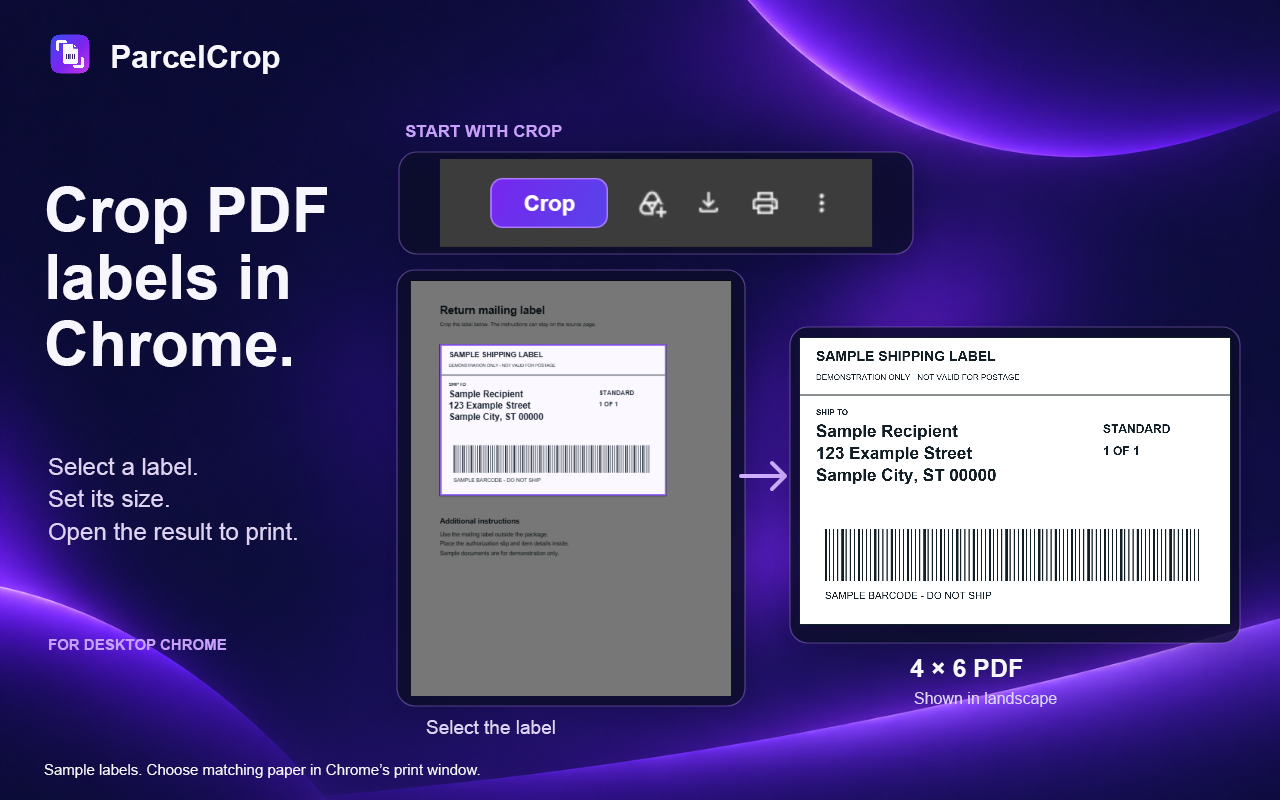
Use Open a PDF for a file on your device, or click Crop on a PDF already open in Chrome. On supported US Amazon.com return pages, choose Crop labels to start directly from the page.
Select and size it.
Draw one crop area on each page you need. Rotate in 90° steps, then choose 4 × 6 in, 100 × 150 mm or A6, with automatic, portrait or landscape orientation.
Review, then print.
Apply the crops to open the finished PDF. In Chrome’s print window, choose your printer, matching paper size and the pages you want.
For labels and return slips
Work through the pages.
Keep the rest.
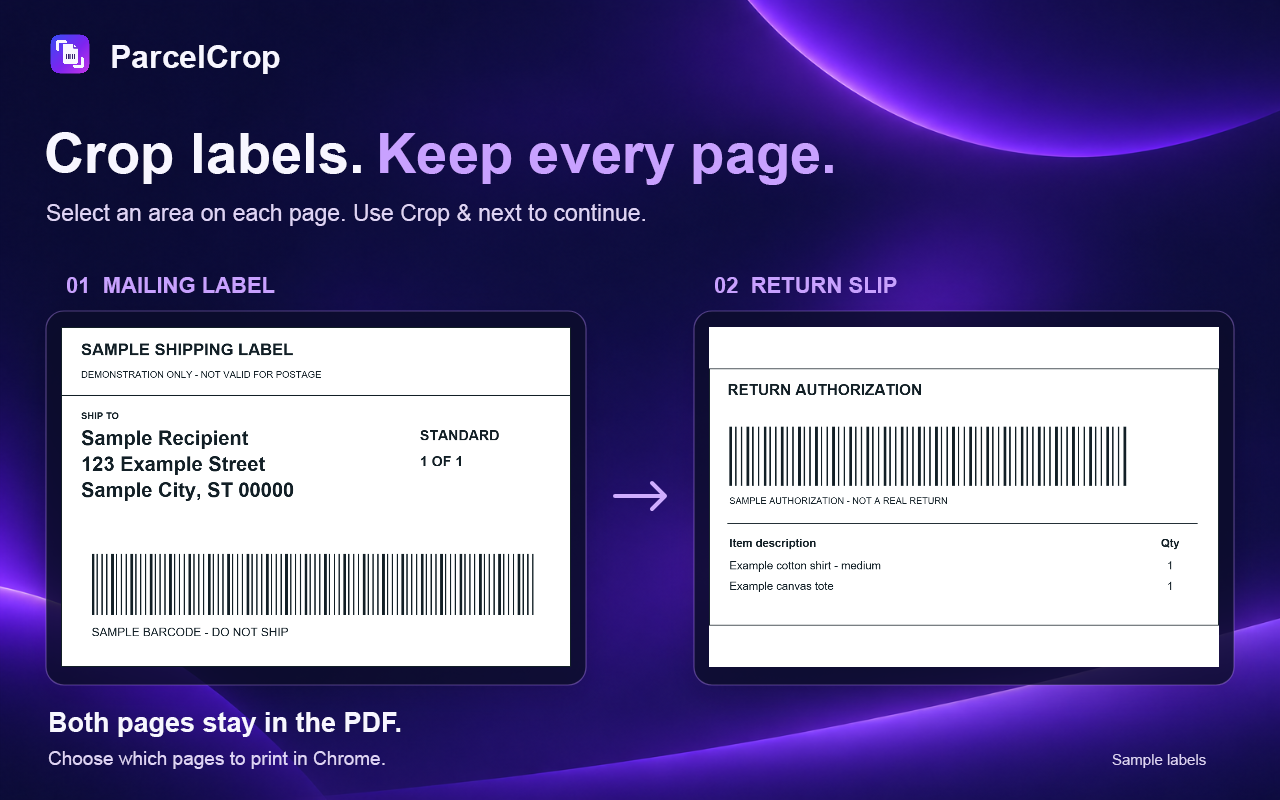
Use Crop & next to continue to the next page, or Finish to apply the crops you have prepared. Every uncropped page keeps its original content, size and order in the document.
Before you use it
A few useful details.
Can I prepare Amazon returns directly?
On supported US Amazon.com return-label pages, Crop labels prepares the original mailing label, authorization slip and displayed item details without saving a PDF first. Review the prepared pages before applying your crops. Layouts outside the supported flow, and item tables too long to fit legibly, need Amazon’s original Print option.
Where are my documents processed?
PDF rendering, cropping and rotation run locally in your browser. Document contents are not uploaded to a conversion service or sent to the payment providers. A web PDF or Amazon label image may be retrieved again from its original website using your browser session.
ExtensionPay manages purchase access and restoration. Stripe processes payments. Read the privacy policy for storage, source requests and account information.
Which devices and PDFs are supported?
ParcelCrop requires desktop Google Chrome 140 or later and has been tested on Windows 11. Use unlocked PDFs up to 75 MB, with one crop area per page. Some protected forms and temporary source links may not open.
Cropping changes the printable view. Hidden source PDF objects can remain in the finished file, so use a dedicated redaction tool to remove sensitive information.
Does ParcelCrop control the printer?
ParcelCrop prepares the PDF. Chrome’s print window, your operating system and the printer driver control paper settings, connections and feeding. Match the selected label size in the print window and inspect the preview before printing. See printing help.
Automatic trial · one-time purchase
Free for the first 48 hours.
Your trial starts automatically when you first install ParcelCrop. It runs for 48 hours, even while Chrome is closed. No signup, card or automatic charge.
After the trial, you can still preview crops. You can make a one-time purchase to keep creating cropped PDFs. Save any finished PDF you want to keep.
One-time price after the trial
US $0.99
No subscription or automatic renewal.